
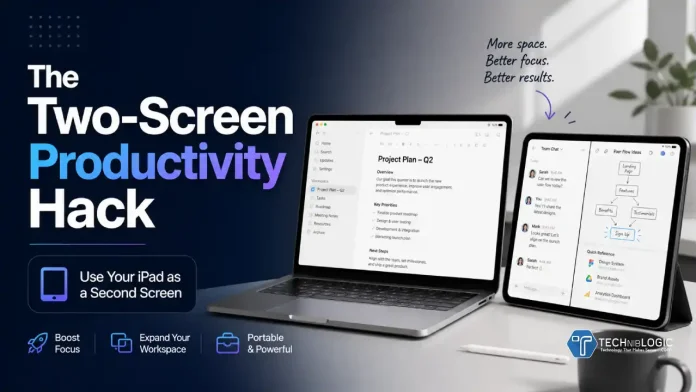
There’s a quiet shift happening in how people work, and it’s not about buying bigger desks or more expensive monitors. It’s about working smarter with the devices you already own.
For many professionals, creatives, and students, the answer isn’t a second monitor anymore. It’s sitting right next to them: their iPad.
What used to be a “nice-to-have” tablet has evolved into something far more powerful. With the right setup, your iPad can become a fully functional second screen—boosting productivity, reducing clutter, and giving you a flexible workspace that travels with you.
Welcome to the two-screen productivity hack.
Why Two Screens Instantly Make You More Productive
If you’ve ever tried juggling multiple tabs, apps, or documents on a single screen, you already know the pain. Constant switching breaks your focus and slows you down.
That’s where a second screen changes everything.
Also Read: Acer Launches Iconia 5G Tablet in India
Instead of flipping between windows, you can:
- Keep your main task front and center
- Reference documents, emails, or notes alongside it
- Drag and drop content between screens
- Maintain your flow without interruption.
This isn’t just anecdotal either. Studies consistently show that dual-screen setups improve efficiency and reduce task completion time.
But here’s the catch: traditional dual-monitor setups are bulky, expensive, and tied to a desk.
That’s where the iPad changes the game.
The iPad as a Second Screen: What’s Changed?
Not long ago, using a tablet as a second display felt clunky or limited. Now, thanks to improvements in iPadOS and Apple’s ecosystem, it’s seamless.
Features like Sidecar and Universal Control allow your iPad to integrate directly with your Mac, while cloud-based tools and apps make cross-device workflows smoother than ever.
More importantly, modern iPads are powerful enough to hold their own.
Devices like the Apple M4 iPad Air aren’t just passive displays — they’re active workstations. You can run full apps, edit files, take notes, and manage tasks independently, all while supporting your primary device.
This transforms your iPad from a secondary gadget into a core part of your workflow.
How People Are Actually Using This Setup
The beauty of the two-screen iPad setup is its adaptability. It works differently depending on how you work.
For Remote Workers
- Main screen: video calls or project work
- iPad: Slack, email, or notes
- Result: fewer distractions during meetings.
For Creatives
- Main screen: editing software
- iPad: reference images, mood boards, or drawing apps like Procreate
- Result: a more fluid creative process.
For Writers and Marketers
- Main screen: writing or CMS
- iPad: research, outlines, or SEO tools
- Result: less tab switching, more focus.
For Students
- Main screen: lectures or assignments
- iPad: handwritten notes using GoodNotes
- Result: better retention and organization.
No matter the use case, the principle is the same: separate your active work from your supporting information.
The Setup: Simple, Flexible, Powerful
One of the biggest advantages of using an iPad as a second screen is how easy it is to get started.
You don’t need:
- A dedicated monitor
- Extra cables
- A permanent desk setup.
Depending on your device, you can:
- Use Apple’s built-in Sidecar (for Mac users)
- Connect via Wi-Fi or USB
- Use third-party apps for Windows setups.
Within minutes, your iPad becomes an extension of your workspace.
But here’s where many setups fall short — and where small details make a big difference.
The Overlooked Factor: Positioning and Stability
Most people focus on software when setting up a second screen. But the real difference between a frustrating setup and a productive one often comes down to something much simpler:
How is your iPad positioned?
If your tablet is:
- Lying flat on a desk
- Propped up awkwardly
- Constantly shifting or slipping.
…it quickly becomes more of a distraction than a productivity tool.
To truly function as a second screen, your iPad needs to be:
- At eye level or comfortably angled
- Stable enough for tapping, scrolling, or drawing
- Easy to adjust depending on your task
This is where a well-designed case becomes essential—not optional.
Turning Your iPad Into a True Second Screen
A high-quality case doesn’t just protect your iPad — it transforms how you use it.
For example, something like the ZUGU iPad Air 13 Case is designed specifically with real-world use in mind. Instead of a single fixed angle, it offers multiple viewing positions, allowing you to switch between:
- Upright “monitor mode” for productivity
- Lower angles for note-taking or sketching
- Side-by-side positioning with your main device.
This flexibility is what turns your iPad into a true second screen — not just a tablet sitting nearby.
It also solves a common issue: stability.
When you’re interacting with your iPad — scrolling, tapping, or drawing — you need it to stay exactly where you put it. A premium case provides that confidence, making your workflow smoother and more natural.
If you’re using a device like the iPad Air M4, pairing it with the right setup ensures you’re actually taking advantage of its full potential.
The “Side-by-Side” Advantage
One of the most effective ways to use an iPad as a second screen is by placing it directly beside your main device — creating a clean, dual-display layout.
This “side-by-side” setup allows you to:
- Mirror a traditional dual-monitor workflow
- Keep everything within your natural field of vision
- Reduce neck strain from looking down or away.
It’s especially powerful for:
- Comparing documents
- Monitoring communication channels
- Following tutorials while working.
But again, this only works if your iPad can hold a stable, consistent position.
That’s why the physical setup matters just as much as the digital one.
A More Minimal, Portable Workspace
Beyond productivity, another reason this setup is gaining traction is simplicity.
Traditional desk setups often involve:
- Multiple monitors
- Mounts and stands
- Tangled cables
- Limited flexibility.
In contrast, an iPad-based second screen setup is:
- Lightweight
- Portable
- Easy to reconfigure
- Ideal for small spaces or travel.
You can move from your desk to a café, a co-working space, or even your sofa—without losing your workflow.
This aligns perfectly with how people are working today: flexible, mobile, and less tied to a single location.
Is This the Future of Productivity?
It’s starting to look that way.
As tablets become more powerful and software ecosystems improve, the line between devices continues to blur. The iPad is no longer just a companion device; it’s becoming a central part of how people work. If you’re still relying on a single screen, you’re likely working harder than you need to.
Also Read: 5 Indian AI Products Are Building Smarter Consumer Experiences
The two-screen productivity hack is a perfect example of this shift. Adding a second screen doesn’t require a full desk overhaul. It might just mean rethinking the role of your iPad. Instead of investing in more hardware, people are rethinking how they use what they already own.
With a bit of setup — and the right support to position it properly — you can create a flexible, efficient workspace that adapts to you.
No extra monitor required.

