Home Blog Page 358

Xiaomi and It’s Exclusive Partnership In India

Finally xiaomi has announced a partnership in India with two companies on the occasion of completing their five years. Xiaomi has announced that they will be joining hands with Snapdeal and Amazon as the company’s distribution partners and providing their products on their E-commerce portal which going to be awesome because now along with Flipkart, the Mobile Store and the Bharti Airtel stores, Xiaomi products will soon be available on Snapdeal and Amazon too which means  their will new offers on the xiaomi products on behalf of E-commerce portal because of competition among them.

We currently don’t have any other  information about if they’re going to stop the flash sale system just yet, though one thing is for certain – Xiaomi is here for a long period of time and want to capture and large market over here in India.

Manu Jain, India Head of Xiaomi, confirmed the same via a tweet –


Xiaomi entered the Indian market with the Xiaomi Mi3, which was launched on Flipkart in July 2014. Since then, the company has been releasing several handsets via Flipkart through the flash sales.

The company is also going to come up with a range of offers for their customers in India which will be valid only for a single day, i.e., April 8th, from 12 noon to 12 midnight. As according to their offers, the Xiaomi Mi 4 will get a price cut of Rs 2,000 on both, the 16GB and the 64GB variant. Buyers who want to purchase the Redmi Note 4G from online partners, Flipkart, Snapdeal or Amazon, will receive a Mi in-ear headphones for free and If the same Redmi 4G is purchased from the Airtel or The Mobile Store, the buyer will receive a 5,200mAh Mi Power Bank for free.

For Snapdeal, this will be a major upgrade as they have been left behind in getting exclusive partnerships with major tech brand. Meanwhile, Flipkart already enjoys the exclusive partner status with several smartphones like Motorola, Huawei (Honor series), Lenovo, etc. and Amazon is the exclusive seller of Micromax, Yu Yureka and OnePlus One.

So it’s going to change the market for snapdeal also.

No Waiting for the  Redmi 2 SALE , Buy directly by this Link (Click Here)

Microsoft Office Lens: A Scanner for Android and iOS

hey guys are you sick of clicking the pictures of all the notes on the whiteboard in class or meeting, or notes pictures from the friends and the pictures are not clear because of its camera angle and lighting. You just get frustrate when you really want that notes and you are unable to read it because of the angle of picture taken by you in hurry.

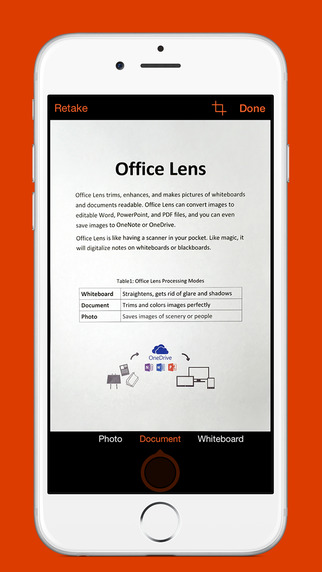
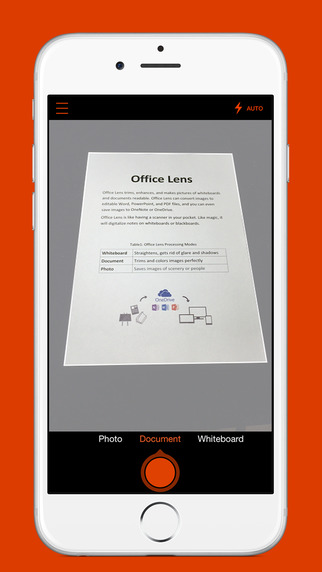
Now, finally there is no need to worry as when Microsoft is here with there development of IOS apps and Android apps with another great app after there Lock screen. The main function of app is that whenever you click a picture weather in a little low light or in any of the odd angle it will make it straighten or crop or do color correction or what so ever the picture require to correct it and make it readable or editable in PDF or any of the office format.

It is just a great app with the name of “Microsoft Office Lens”. The application will simply make you smartphone which can be a phone, a tablet or any other device with the Operating system of android, IOS or windows into a small pocket scanner. It is really very easy to use and install through there application store regarding the operating systems like for Android Office lens , and for IOS Microsoft Office lens . You can take the picture from the app at any angle it will make it out in a readable and in a correct form. As you can see below.

microsoft office lens
image – ITunes
microsoft office lens
image – ITunes


it can be used at any point of time even you are so much hurry to go.

The functionality of the Microsoft Office Lens app are as follows:

  • Office Lens recognizes the corners of a document and performs automatic cropping. It cleans up and enhances the quality of images to make it brighter and visible.
  • Microsoft Office Lens identifies printed text on the image with optical character recognition (OCR). Which makes it easier to search images by keyword from OneNote or OneDrive.
  • Converts images of paper documents and whiteboard notes into Word documents, PowerPoint presentations and PDF files for easy editing and reformatting.
  • Captures business cards and generates contacts you can add to your phone.
  • Inserts images to OneNote or OneDrive (as DOCX, PPTX, JPG or PDF format) and gives you options to save, export and share the image.


WhatsApp integrated into Facebook

guys finally a news which is out from Geek Times, from where we get our answer why Facebook has bought WhatsApp a year back in $19 billion which is a huge amount of money to invest by Facebook. They just want to capture their future competitor ans due to whatsapp the users of Facebook are coming down.

Almost after a year of acquisition of  platform smartphone messaging App, WhatsApp, Facebook has finally begun testing a new feature in its ‘Facebook for Android’ application that includes the first major integration of WhatsApp in it.

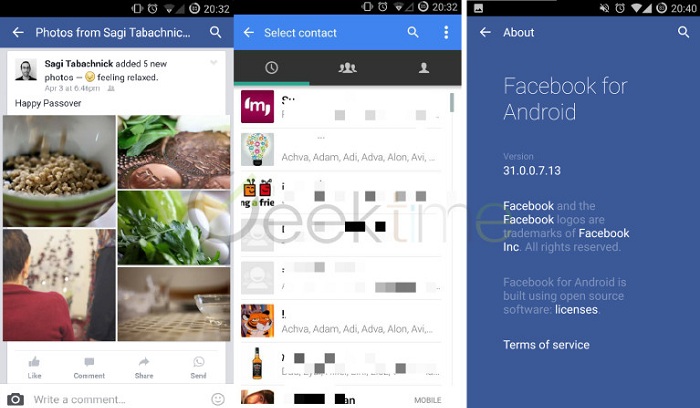
One of the clear signs of integration is the newly added  ‘Send’ button in Facebook for Android. The button comes with the familiar WhatsApp icon as a part of the status action buttons that appear under each status update.

The new button appears on the right side (for left-to-right languages) for some users in the most recent version of the Facebook for Android app, the Geek Time reported.

Facebook-whatsapp-Intergration
Image:Geektimes


This will be the first step from Facebook to show that they own whatsapp and again a new market capturing will start with the integration of facebook and whatsapp messaging service together which can be benefit the users by connecting the friends easily and can harm also as the privacy which we get on whatsapp messaging, will not be received on Facebook after integration of both the applications.

According to reports, teams are already working on a deeper integration that will include the ability to send messages between Facebook Messenger and WhatsApp.

WhatsApp, which has almost a billion monthly active users has already rolled out WhatsApp calling feature in Android smartphones which is a really awesome step taken by Facebook as it has benefits but right now that feature has many glitches like when we call another person and he/she doesn’t pick up the call the earpiece speaker stop working you need to restart the device to gain make it work. this step will take the messaging app in new era after integrated with Facebook for Android App.

Also See : Get Whatsapp Voice calling Feature without an Invite

The Nixie – World’s First Wearable Drone Camera

A program which is called Make It Wearable (MIW) Challenge was launched by Intel around a year ago. The program was aimed at creating some unique wearable devices of or for the future. Its final event was organized on 2-3 November and ten teams of enthusiastic and young individuals were selected to develop the next big thing in this field.

there are lot of time when we are alone no friends no family members with us and we are doing something which we just want to capture within the camera and make the moment live forever in the camera as a video or a still picture but we wont be able to take it as no one is near by to use the camera accordingly.

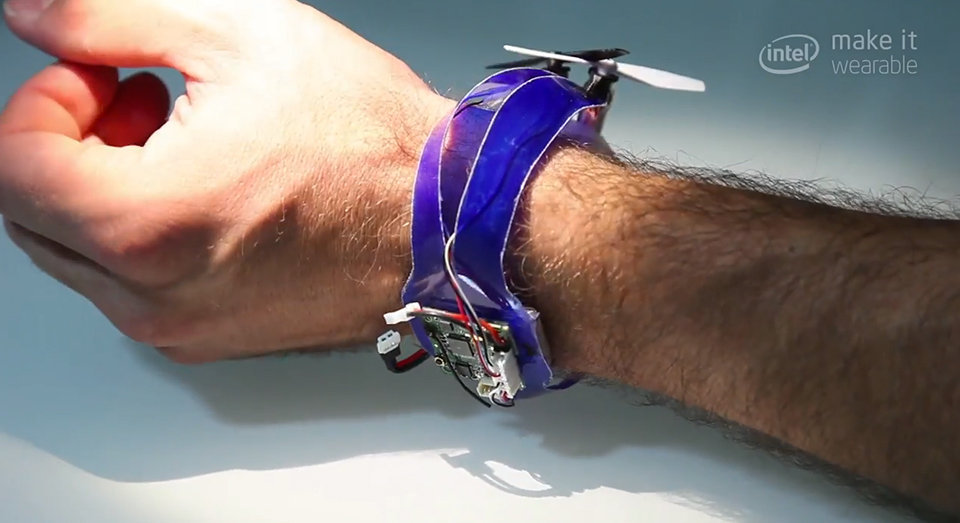
So this wearable drone which is The Nixie for those only. The main function of drone is, you can wear it as a wearable on your hand and as you will give the command to the drone to fly and take a video or the still picture it will take off from your wrist and will start following you buy taking the pictures and the video by adjusting the frames, doing some balancing and focusing tricks and clicks your picture and returns back to you obediently. There is no requirement of any of the friends or any family member to make them stand with the camera and say them to make the video or to take the still picture of you.

Wearable-drone
image- Intel

The best part of this wearable will be it will be a cool looking awesome band which we can wear and can take pictures or record videos accordingly we want at any place at any time without the help of any one.

In the program, Team Nixie has earned $50,000 funding and with Intel’s support this can become a reality someday.

Unlock Your iPhone With a Selfie

So, iPhone lover do you want to unlock your device with just clicking your selfie, your buy just making your face in front of your iPhone and unlock it just like the face recognition system that we all have in some of our laptops.  So, the dream of this just going to be happen by the next patent which has been make by apple Inc. for there future devices or to even implement in there on gong devices by just adding this feature in there new upcoming OS.
As due to  ever-growing trend of selfies are there, which is now inching forward to hit a new transformation. It’s time when selfies are going to be the safety patter or safety lock for your devices. In devices it can be your phone your tablet your smart watch etc. This is all going to be possible because of a new Apple patent which allows the users to unlock their iPhone with a selfie.
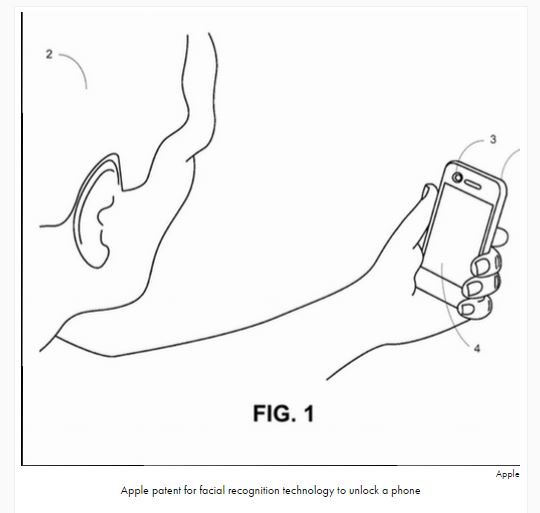
Patent US 20120235790A1 with title ‘Locking and Unlocking a mobile device using facial recognition’ proposed that this technology can use the camera on an iPhone to identify the user and then unlock or lock the phone by just recognizing the person in front of it.

Apple depicted a mixed bag of employments through the patent, however every last bit of it closures at the gadget taking a speedy picture and analyzing the face to focus the user. In the event if the face is recognized using the camera, the phone would open and otherwise it will ask for the password to get the access of the phone.

apple-patent-iphone-selfies

However, the facial recognizing system can be increased by adding the different facial of friends or family like the finger print recognizing system is already having. In this way the friend and family will also be able to access the phone just by placing there face  in front of the device and easily unlocking it. Apple iPhoto is already having such kind of feature in it recognize all the faces in a particular picture and we can name them accordingly.

Apple is not the first company to get such idea of getting the facial recognition system in there devices, but the main thing is that weather after patent it is going to work like other was not. However, No matter Apple is having the patent  of unlocking the phone based on facial recognition, but Apple needs to prove it among its consumers.

Xiaomi Redmi 1S Vs Xiaomi Redmi 2 Indepth Review

hey Guys again back with the in-depth review for Xiaomi Redmi 1s with its succesor Xiaomi Redmi 2. They have lot of similarities and difference also. So let’s first start with its display and the overall look and feel of both the device after taking them in the hand.

Display

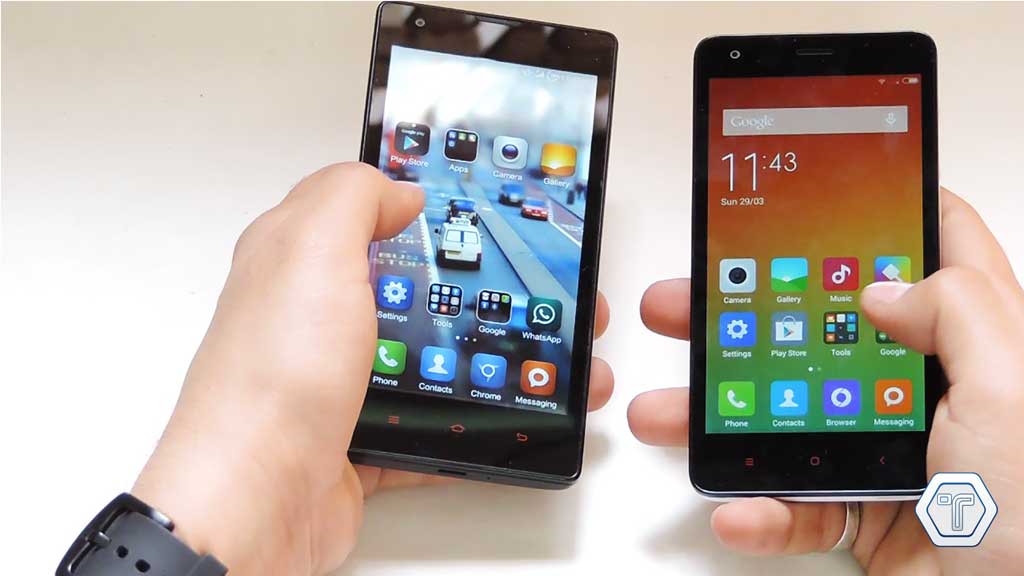
When we come to comparison of display between both the devices Redmi 1s and Redmi 2 both has same screen size, but when we come to quality and overall resolution of both the devices Redmi 2 has much better screen quality when we watch the video of pictures on it we can observe it very easily.

Xiaomi Redmi 1s vs Xiaomi Redmi 2 Display Quality

Camera

When we compare the camera of both the devices the in-depth review of Front as well as back camera has being already posting and the Link is given Below you can check it out and get the exact idea regarding the camera quality of both the devices, as both the devices comes with 8 MP camera but the Redmi 2 Comes with much better options of camera sensor when we compare it to redmi 1s.

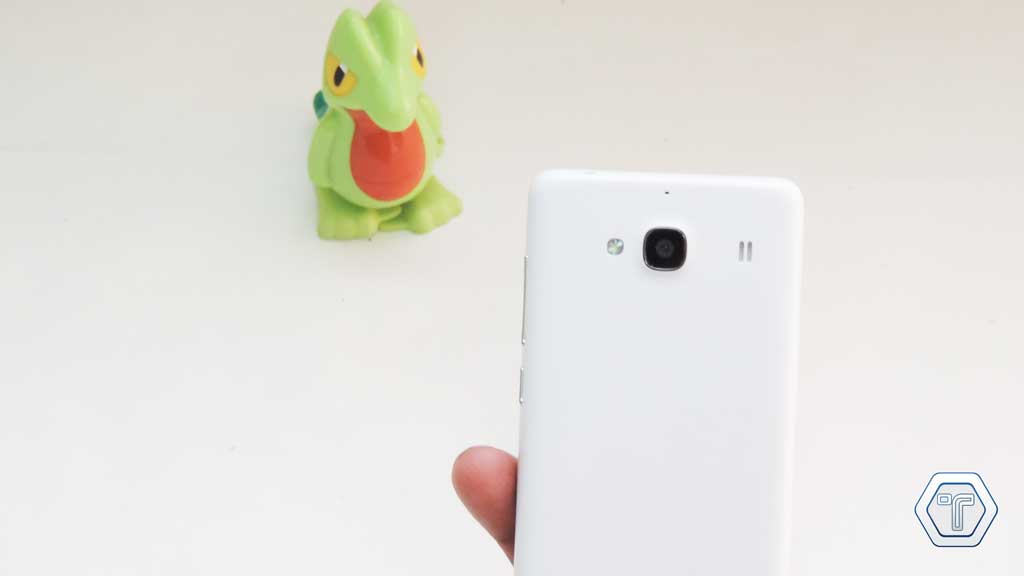
Xiaomi Redmi 1s vs Xiaomi Redmi 2 Camera

Front Camera Review : http://techniblogic.com/xiaomi-redmi-2-vs-xiaomi-redmi-1s-ront-camera-review/

Primary Camera Review : http://techniblogic.com/xiaomi-redmi-2-vs-xiaomi-redmi-1s-camera-review/

Battery

Redmi 1s comes with 2000 mAh Battery where as Redmi 2 comes with 2200 mAh Battetry which is slightly larger than its predecessor as it will help the device to be wake up for more time.

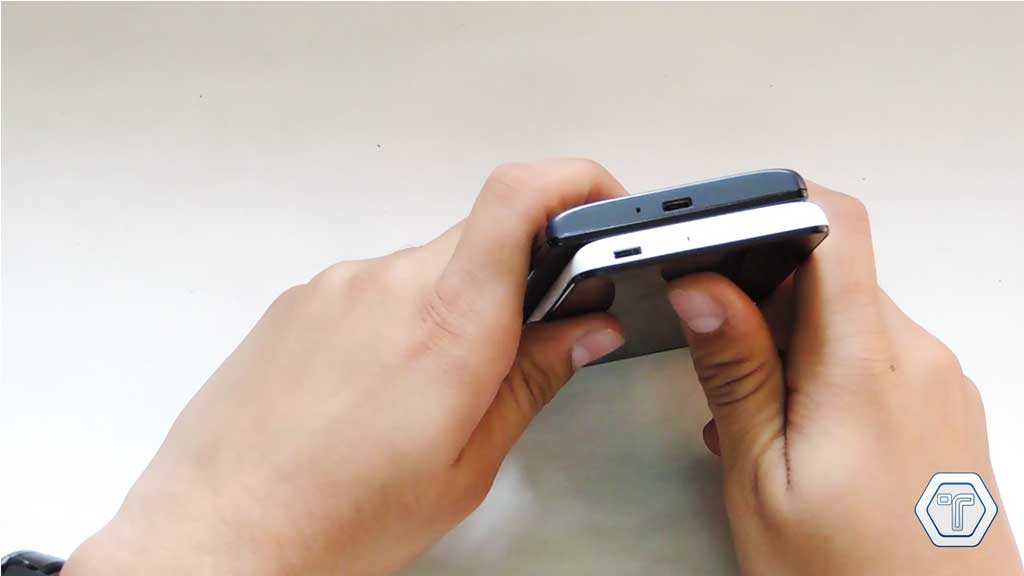
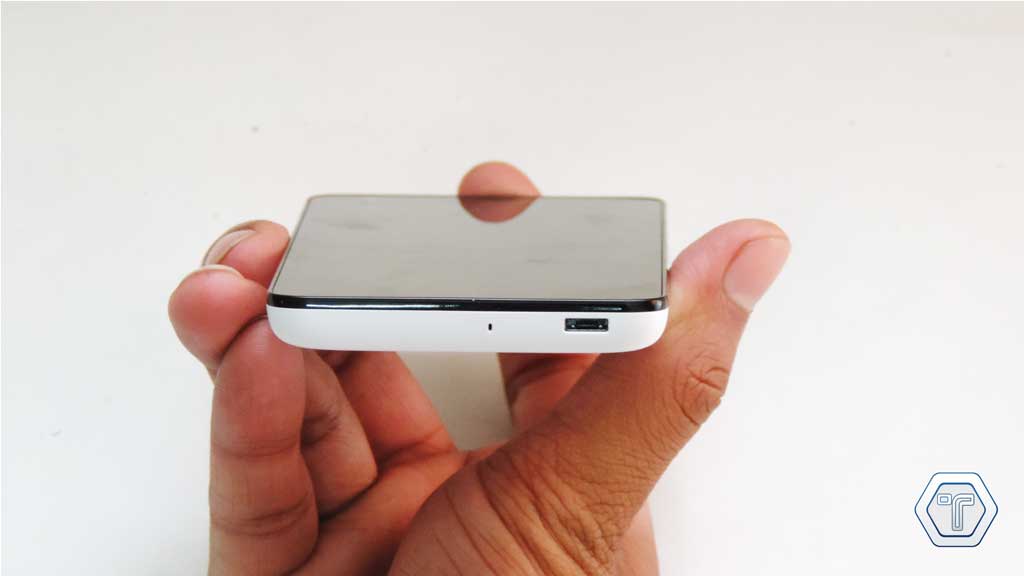
Xiaomi Redmi 1s vs Xiaomi Redmi 2 Micro USB Jack

Buttons

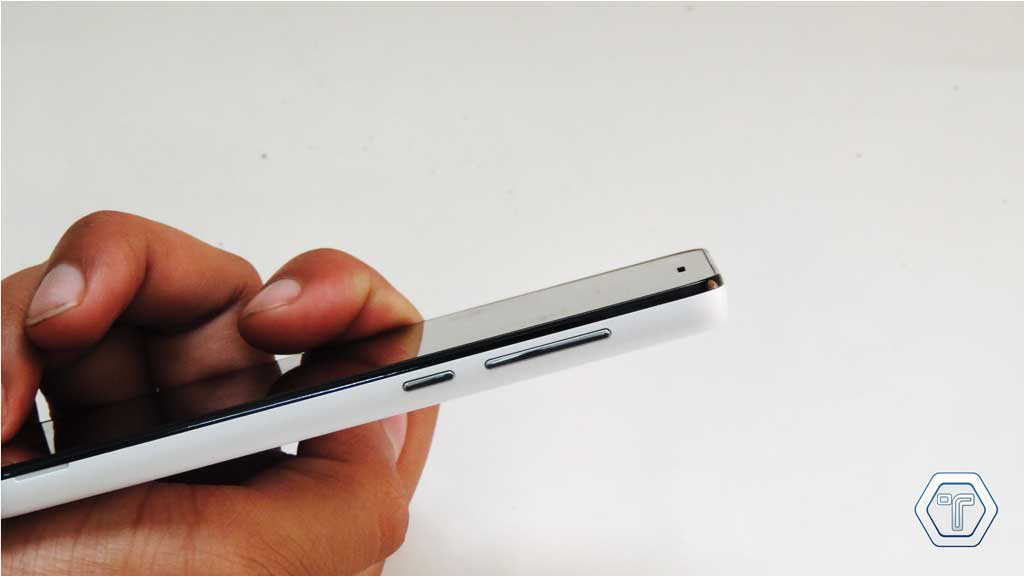
On the right side of both the devices there are volume rocker and power button which are exactly the same , same quality of plastic and almost everything is same when we compares the buttons

Xiaomi Redmi 1s vs Xiaomi Redmi 2 Power Button

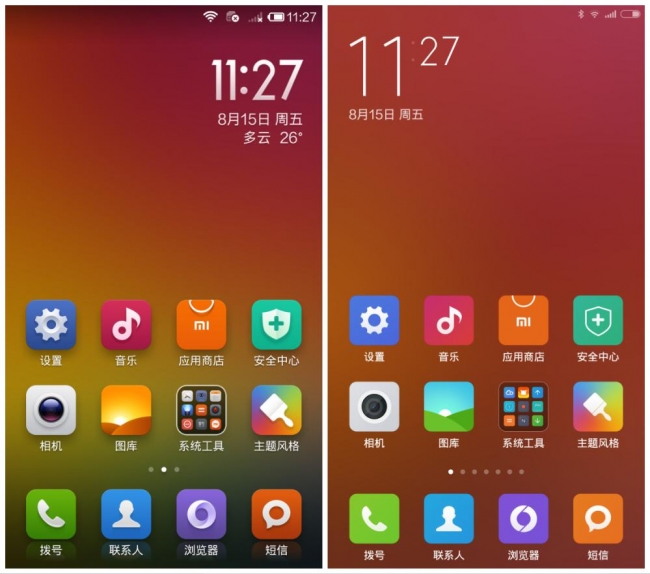
UI

When we come to the user interface of both the device redmi 1s comes with MIUI v5 where as its successor comes with MIUI v6 which is being latest android based ROM from Xiaomi in the market. It is just buttery smooth no other word will suit for explaining it further, No lag nothing is being there in this UI (User interface).

Xiaomi Redmi 1s vs Xiaomi Redmi 2 MIUI 5 vs MIUI 6

Built Quality

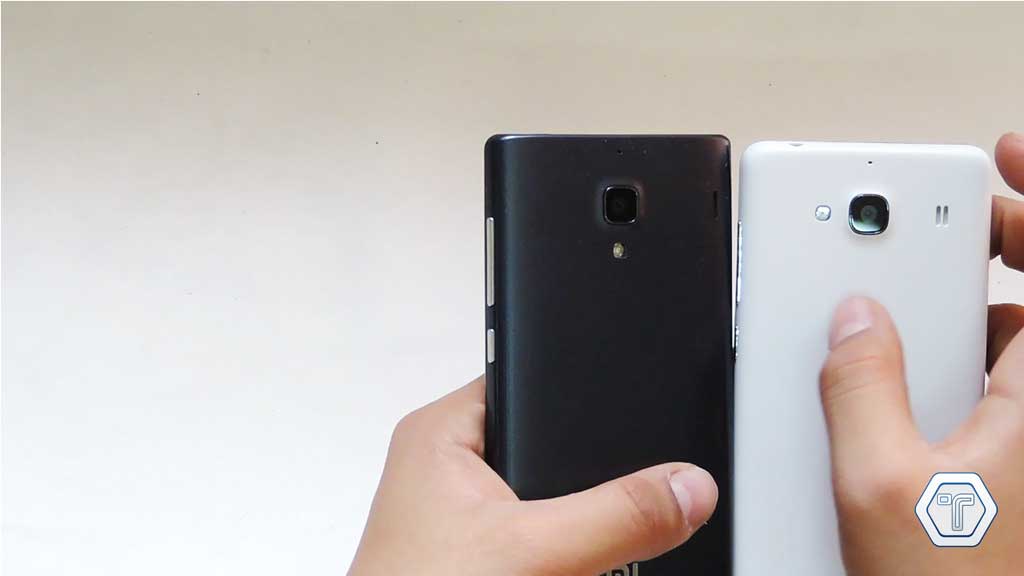
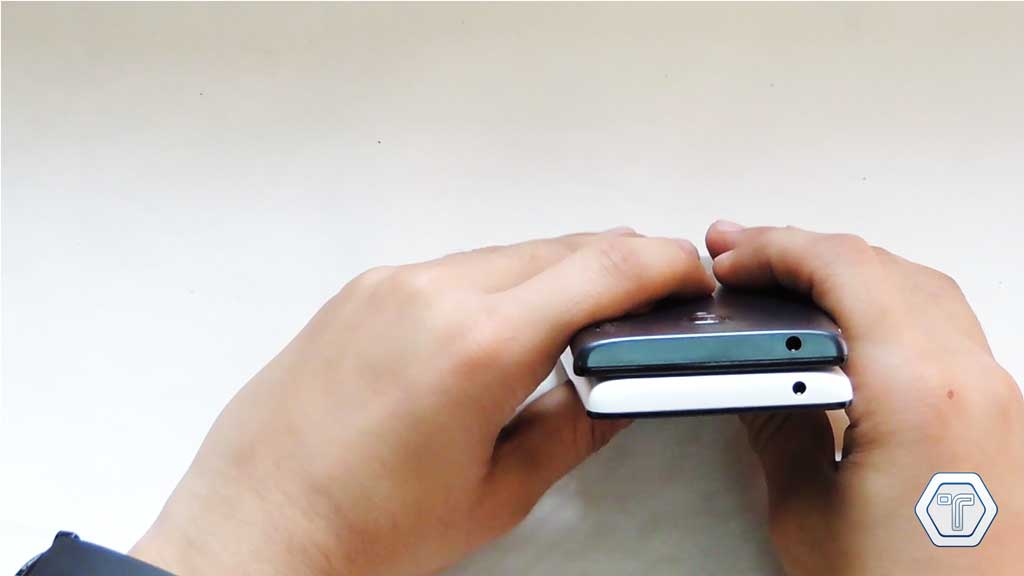
When we come to the built quality of both the devise redmi 1s is bulky in front of redmi 2 when the weight of Redmi 1s is 150 grams approx and redmi 2 has 133 grams appox & the thickness of redmi1s is 9.9mm where as redmi 2 comes with 9.4 mm thickness. Redmi 2 comes with matt finish at back which is much better than its predecessor due to which it is very easy to handle it without being afraid to make the device slip from the hand.

Xiaomi Redmi 1s vs Xiaomi Redmi 2 Headphone Jack


Overall Redmi 2 is much better than Redmi 1s because of its built quality and its new snapdragon processor 410 which is being upgraded from its previous device.

If you guys have any of the query regarding the device please let me know by commenting below.

The video for the same has being attached with the post hope you guys like it and also subscribe to out YouTube channel for further support.


Xiaomi Redmi 2 Indian Unboxing and Quick Overview

Hey guys back with a another unboxing video of the latest device which is being released by XIAOMI in India the Xiaomi Redmi 2 which is the successor of its previous device which was Xiaomi Redmi 1s. The device was being released in Indian on 24th March sale and was being delivered within 4 days to every customer out there.

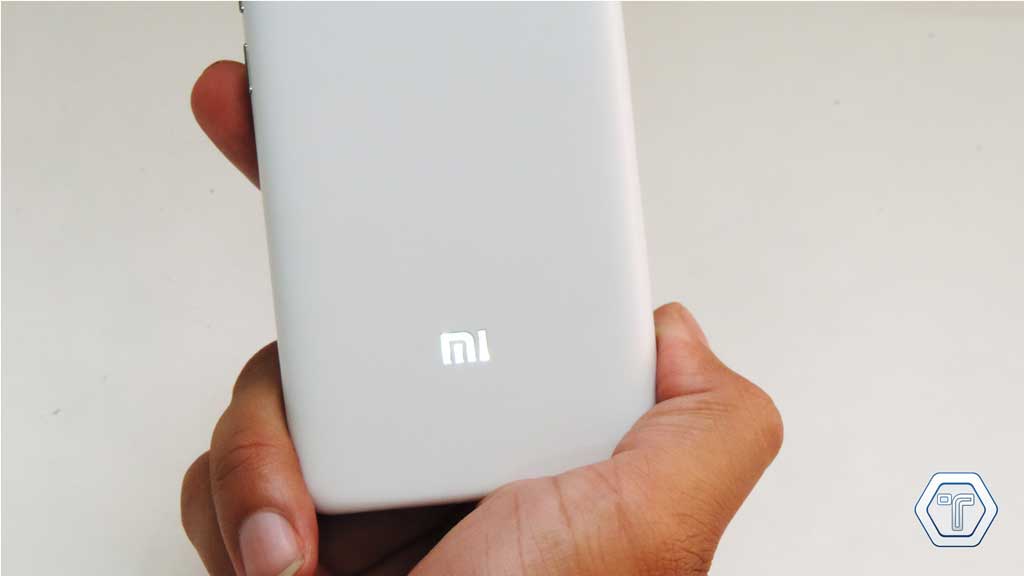
Xiamoi Redmi 2 Logo

When we come to the specification of the device it comes with Snapdragon 410 , 1 gb of ram, 8 mp of primary camera and with a much better screen quality which we have received in Xiaomi Redmi 1S. The screen sizes of both the devices are same which is 4.7 HD display.

Xiamoi Redmi 2 Audio Jack

When we come to the audio quality it is really very good which is crisp and clear and even loud not like the previous one. The overall look and feel of the device in the hand is premium looking and has the Matt finish at it back which is pretty good and make the device easy to handle from one hand.

Xiamoi Redmi 2 Micro USB Jack

The camera quality of the Device is really improved and is much better than its predecessor as it has many new camera sensors in it. The sides of Xiaomi Redmi 2 are a little curved so that it can be easily handled and the weight has also come down from 150 grams to 130 grams.

Xiamoi Redmi 2 Camera

The battery of the device has also being increased from 2000 mAh to 2200 mAh. The main thing which is not covered yet is that the UI which we get in the device is the  Android based Xiaomi ROM which is MIUI 6 which is much better than the MIUI 5 which we received in box in Xiaomi redmi 1S. The Xiaomi Redmi 2 out the box comes with Android Kitkat 4.4.4 and is going to get the update soon as according to the Xiaomi forum.

Xiamoi Redmi 2 Volume Rocker & Power Button

Overall according to me the device is a worth to buy in such price segment, and the fan of MIUI will love it as they are getting this MIUI v6 in this device. Every desired look feel, quality, specs has been increased in this updated version of Xiaomi Redmi 2 from its predecessor Xiaomi Redmi 1S.

If you guys have any of the queries regarding the device do let me know about it.

 No Waiting for the  Redmi 2 SALE , Buy directly by this Link (Click Here)

WhatsApp Permanently banning users using Third Party apps

hey guys got a news about whatsapp banning there users using the third party apps like whatsapp+ or using different unofficial clients. They are risking their online messaging service to be permanently banned by the company. The information was out from one of the German website Mobiflip which received several complaints from users.

The Whatsapp users sending their messages with third-party apps like Whatsapp+ or WhatsappMD. These apps aren’t available on the Google Play Store but offer many more features other than the official Whatsapp-app. A feature for which many users install the apps is being able to see the “last seen” status from other users while the user’s status remains hidden and many other differnt features which these thirt party apps offerers.

Recently Whatsapp started to ban users using third-party Whatsapp-apps and it appears the company has now started to permanently block them. Affected users likely received a temporarily ban or warning before they were permanently blocked.

The permanent block means  that Whatsapp will permanently ban phone number on which the third party app is working by the user which will also makes impossible to activate and send messages using the official Whatsapp-app in the near future you have to change the registered number to activate the official whatsapp in your device.

The third-party apps are also no longer developed. The developers ceased development after they received warnings from Facebook stating their apps violate the Whatsapp user terms. The third party apps which are available online to download are the old version and are nopt going to get any update in near or later future.

So, guys what you think about this step taken by whatsapp will it be worthfull for them or the user will switch themselves to different clients available in the market. Do comment your views regarding it.

How to save Google Maps for offline use

As we all know google maps are being very helpfull on all the aspect wheather we want to use it for navigation purpose or to find some restaurants or some dinning area near by they are being used everywhere now a days.But the main drawback is they require a large amount of mobile data WHAT IF WE ARE RUNNING SHORT OF MOBILE DATA? due to which nokia maps are here to save the offline maps but now Google maps also offers to save the map offline with a simple and easy steps you can do.

so we start as:

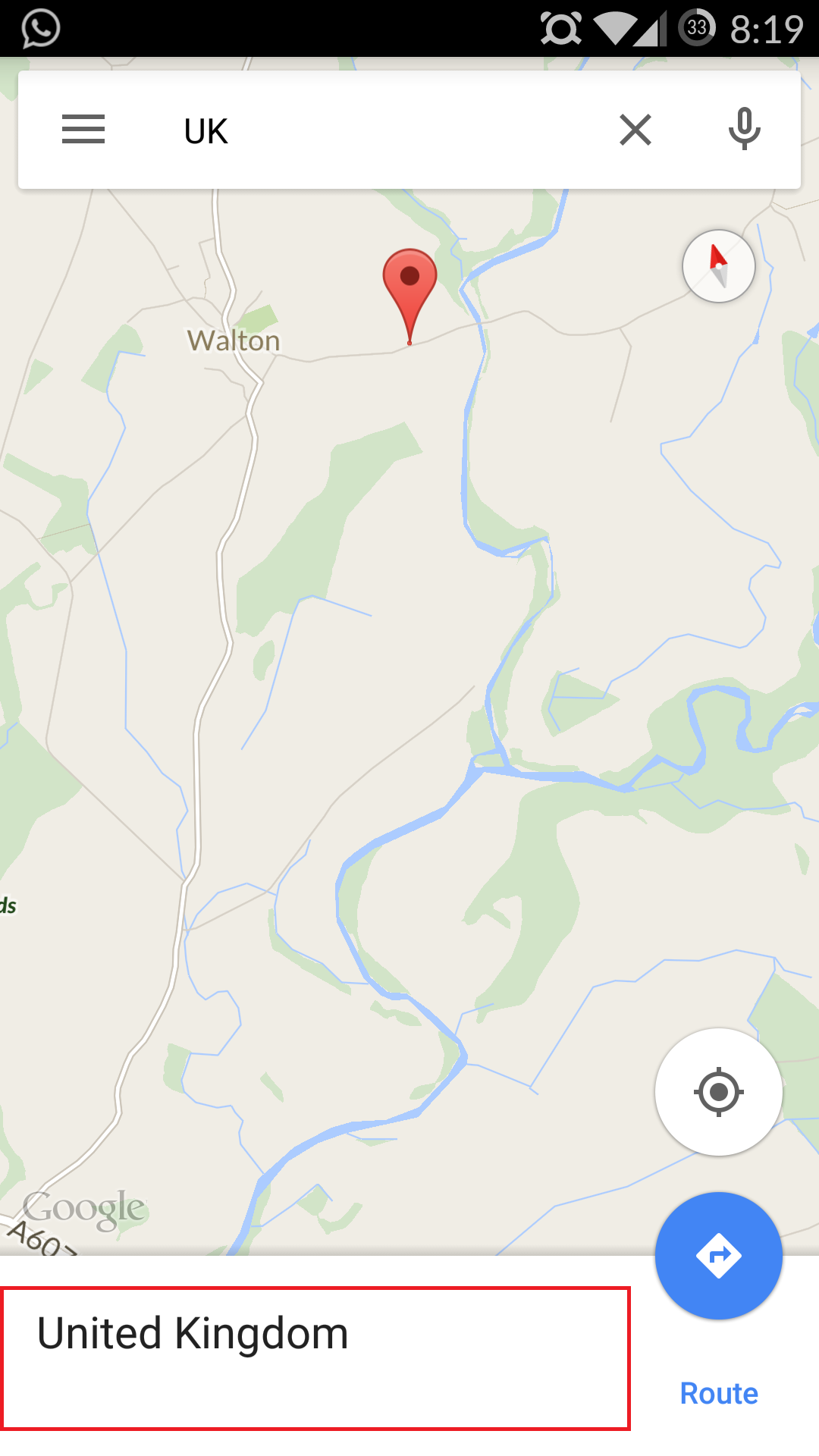
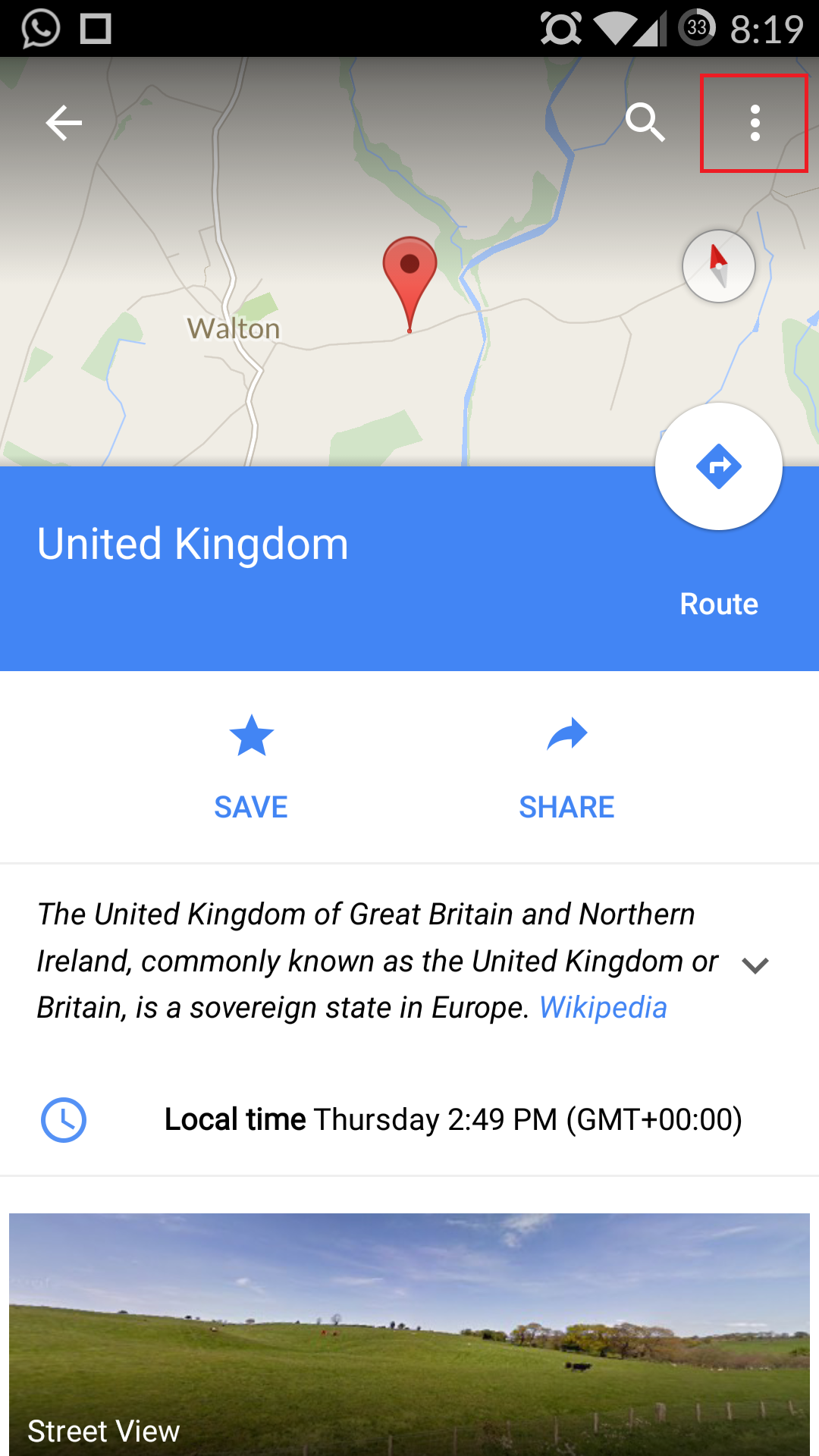
1. Click  on the search bar and then search for a place. Now you will see the place name at bottom.

2. Tap the bar at bottom, you will be seeing options like Route, Save, and Share.

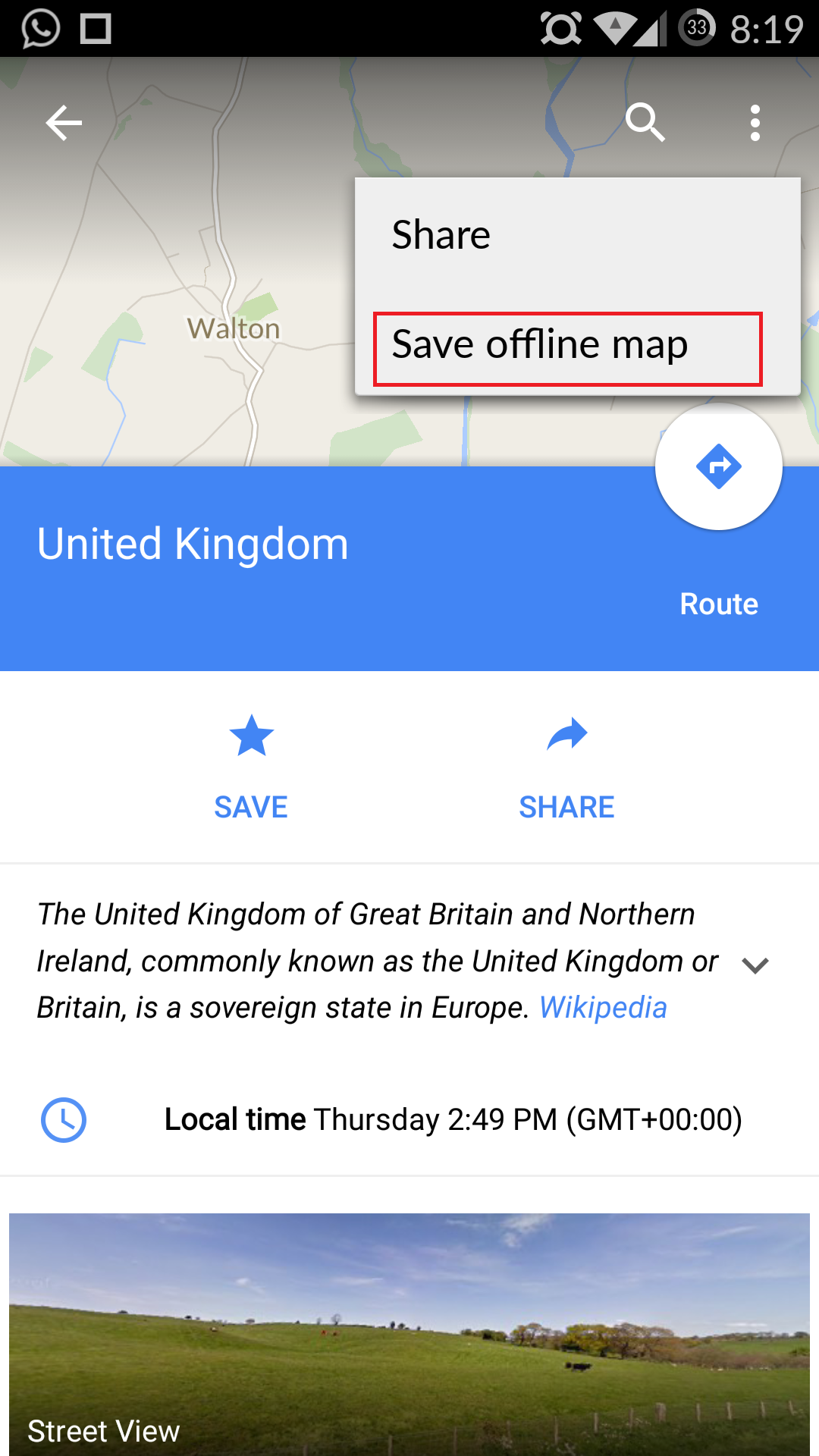
3. Click on the three dots coming on the top right side of your screen.

4. Now, you will be able to see the option for “Save Maps to use offline”.

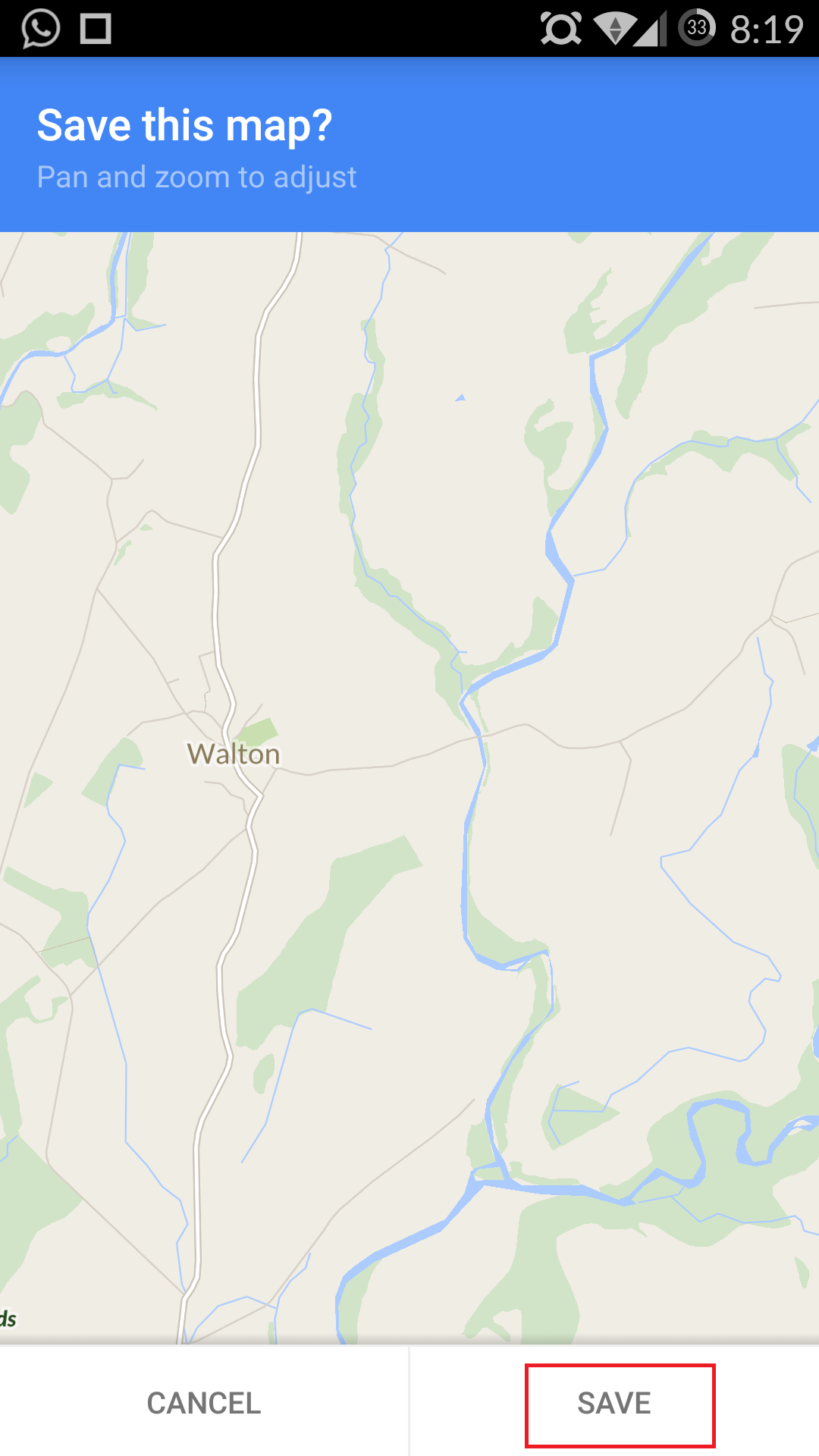
5. Click on it, and it will ask to confirm to save the map or not and just click on save button.

Saving Google Maps Offline Saving Google Maps Offline Saving Google Maps Offline Saving Google Maps Offline


To access the saved maps,

1. open Google Maps, then sweep the menu bar from the bottom left.

2. Now tap onYour Place. If you are using your data connection, you need to scroll down to the bottom to find View all and manage, Otherwise without the data connection, it will be available at the top. Here you will find your saved maps.


  • Area must not be too large.
  • The saved areas in offline Google Maps are automatically cleared after 30 days.
  • Location services will be very slow due to no data connection while using offline Google Map.
  • Since you don’t have a data connection, you won’t be able to perform step-by-step navigation in offline Google Map.
  • If you prefer downloading the maps in bulk for offline navigation, I will suggest you to try Nokia Here maps Or whole Google map offline which is about 1.7GB


Get Whatsapp Voice calling Feature without an Invite

Hey guys againj back with a bang post of Getting voice call feature on your whatsapp without any invite. I just found this trick on Xda Developers and some other websites which i have mentioned in the sourced Area.

I used it it worked and i just shared it so that my viewers will also be able to use the voice calling feature of whatsapp and make bvenefit out of it.

NOTE:

If you want to call someone after activating this feature using method 2 and 3, the other person must have enabled this feature in order for that person to receive your call. Also, you need a rooted device

Method 1:

  • Uninstall the older version of your Whatsapp app.
  • Download The latest version of Whatsapp app. The link for the latest version is HERE.
  • Now install the latest version of Whatsapp app.
  • Ask your friend who is having the Whatsapp calling feature for invitation by asking him to call you. Once it’s done, you’ll have the voice calling feature on your Android phone.

Update: This feature is reportedly not working on many devices. Follow the step below to get the WhatsApp calling feature without an invite.

Method 2:

  • You need a rooted device to try this method.
  • Using the link mentioned above, install the latest version of Whatsapp app.
  • Now open Root Explorer or Es file Explorer your Android device.
  • Go to Data > Data > com.whatsapp > Shared_prefs > com.whatsapp__preferences.xml
  • Now edit the above file and add the two lines written below after <map>-
<boolean name="call" value="true" />
<string name="call_allowed">all</string>
  • Now after saving this file, go to Setting > Apps and Force Stop Whatsapp.

Method 3:

  • Again you need a rooted device, the Terminal Emulator and the latest version of WhatsApp. Download it using the link given earlier.
  • Open the Terminal Emulator on your phone and type the following.
su
am start -n com.whatsapp/com.whatsapp.HomeActivity
  • Now your WhatsApp will open with the calling feature enabled.

How to Locate Lost Android Device

hey guys back after a long break you guys must be thinking that there is no post from a past couple of weeks, it is due to some examination going one. And finally i am here with a new educational post and hope you are going to like it.

So, sometimes it is a common problem we left our device in our classroom or in a friends car and don’t know where we have left it & sometimes we forget our cell phone by keeping it somewhere so here is a simple technique using which you guys can locate your device easily or ring it from anywhere in the word or erase the data or even lock the phone to keep the data safe from your friends or some kind of thief. Most of us start making calls although it doesn’t make any sense if vibration mode too is off but the ring works when we call using this service the amazing feature which i get to know.

So here we start it:


  • Go to Android Device Manager by Google in your desktop browser, follow the link HERE.
  • Login with the same Gmail account you used to activate your Android Device before and registered in Google Play.
  • Now you will see your device name and last login date. Also, you will be seeing three options i.e. Ring, Lock and Erase.
  • By clicking on Ring, your device starts ringing at high volume which help you find your phone in seconds. This function works even when your phone is in silent mode.


find lost phoneYou can also Lock your device with a password in case device is lost. You have to input a message and a number to make sure whoever finds your phone, can call you back at that number.

2If the Location services of the device are turned on, you can find the exact location of the device by clicking on locate service which is at the right side of the device name.

You can also wipe off the data by clicking on Erase. It’ll perform a factory reset on your device. Your apps, photos, music and settings will be deleted. After you erase the device, Android Device Manager will no longer work. Factory reset setting will start working automatically when your device is online.

Warning: Do not forget the password at the time of locking.

Cons: Location option Only work when the GPS option is enabled in the device else ring and erase and lock all features work fine without GPS.

Most Advance Robot The world Has Ever seen

You guys must be thinking what it is? How exactly it look like? who is the most advance robot the world has ever seen? what are the features and what it all can do which will benefit the humans in different ways? so all your answers will be here when you will see the attached videos and read the article which defines all the necessary points which will just give you the imagination that how it can be used and at what level it may harm the humanity in the near future.

I know it all seem to be little unrealistic like in the Terminator series where there were robots who have just attacked the humanity and want to destroy the whole humanity but may be in near future it is going to be true with the artificial intelligence developing at a very speedup level.

As you all know Humans are getting pretty good at designing robots with different works. We’ve got amazingly realistic robot spiders, a robot raptor that can, robot snakes, and hexapod robots with robot snakes for legs. We’ve even left one to its own devices on Mars for the research and different purpose. And now we have ’Spot’, a robotic quadruped or we can say a Robot Dog developed by roboticists at the Boston Dynamics lab, a Google-owned spin-off from the Massachusetts Institute of Technology (MIT), based in the US.
By looking at the point if we see it, we can say that we are very close for building a robot army as you all can see in the movies,but there’s no guarantee that once we do, we’ll be able to continue to bend them or they are going to bend us.

obotdog

In all seriousness, The robot dog named Spot is such an incredible piece of technology. It’s a more refined version of Boston Dynamics’ WildCat robot, which it showed off in late 2013. Less bulky, and more agile, Spot is electrically powered, with four hydraulic legs, and uses a sensor built into its ‘head’ to help it navigate its surroundings, so it can walk or trot its 72-kilogram (160-pound) body over hills, down stairs, or through urban bushland. And boy, can it sustain a kick, even if it looks heart breakingly wounded on the inside as it does it.
So guys the the robots are coming, are we going to be smart enough to handle them?
Do share your views and your points by commenting.