Home Blog Page 356

Partition Your Hard Drive With Aomei Partition Assistant

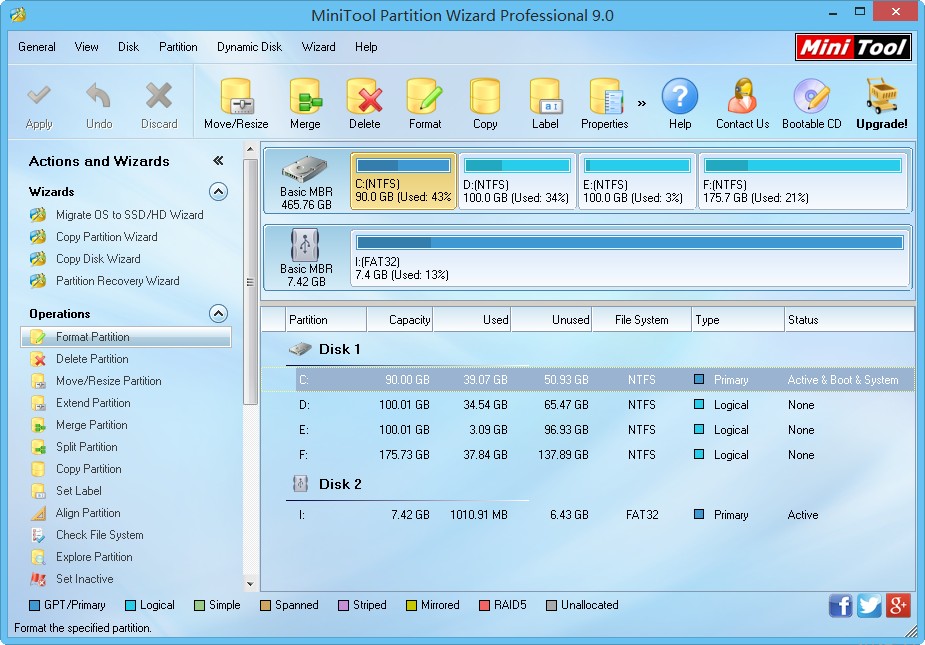
Hey guys when i find a application Aomei Partition Assistant, but i thought it may like the old windows partition application which is a normal. Then a bit later i see something new in the description which means —creating Windows To Go drives (a portable Windows) from any version of Windows 8. Formerly, this was only possible with the Enterprise version.

AOMEI Partition Assistant - techniblogic

Partition Assistant comes in two versions: Standard (free) and Pro which will charge you about  $49. The standard version has everything which a normal user needs: partition splitting, copying, resizing, creation, deletion, formatting, property changes (e.g., active to inactive), and even secure wiping. There are also helpful wizards for copying, resizing, converting from NTFS to FAT32 and vice versa, plus migrating to a new hard drive or SSD. The program creates bootable Windows PE (Pre-install Environment) discs as well.

The Pro version adds some new ability like to convert Windows dynamic disks to basic disks, change partitions from logical to primary, alter partition IDs and serial numbers, convert disks from MBR to GPT and back again, as well as allocate free space from one partition to another. If all that sounds a little tricky and geeky, you don’t need the professional version i am sure. But those are handy with IT features, like some geeks then they may require to manipulate and maintain drives and partitions on a regular basis for the safeness of there data.

In application you can choose a USB flash or other external drive as destination, an Windows 8.1 WIM (Windows Install Media)/ISO file as the source, and create a live version of Windows 8 on said external drive that will boot from any PC.

AOMEI Partition Assistant 1 - techniblogicAOMEI Partition Assistant 1 - techniblogic
  • You need at least 13GB free on the drive, which in practical terms means you’ll need 16GB drive, or more likely 32GB if you intend to install any software and actually work with it.

Partition Assistant will create the disk for you, but you’ll still need to activate Windows. Aomei claims there should be no issues as long as you use a legitimate version of Windows 8.

As partitioning software, Aomei Partition Assistant is as very good as any program I’ve seen. The standard version is more usefull for most users for there normal usage.

So, guys Use the Application And let me know what do you think about it.

Learn more: http://www.disk-partition.com/free-partition-manager.html

Pros

  • Excellent partitioning and copying capabilities
  • Creates Windows to Go drives from non-Enterprise versions of Windows
  • Make the Windows portable on any memory device.

Cons

  • At some places it is not easy to understand some function.

Create a Custom Windows Recovery Partition Using AOMEI OneKey Recovery

Hello guys your computer, sometimes due to miscellaneous crashes and hardware failure dont boot which may cause you a problem which means if you never take a system backup, you will lose a large amount of critical data or a Windows re-installation. Most of the companies ship there system with one or another system recovery applications like:

  • Lenovo One-Key Recovery
  • Dell Backup and Recovery Manager
  • HP Recovery Manager

and so on. But some of them are really very complicated to use for new users, or do not work on the latest operating systems like Windows 8.1 or any of the new version which is newly available in the market. Besides, different brands of computer have different backup and recovery tools. What’s the solution? If you have your own system by assembling it youself or any of the company charging a lot for a particular application, so for those there is a free application which is available online to Create a Custom Windows Recovery Partition Using AOMEI OneKey Recovery.

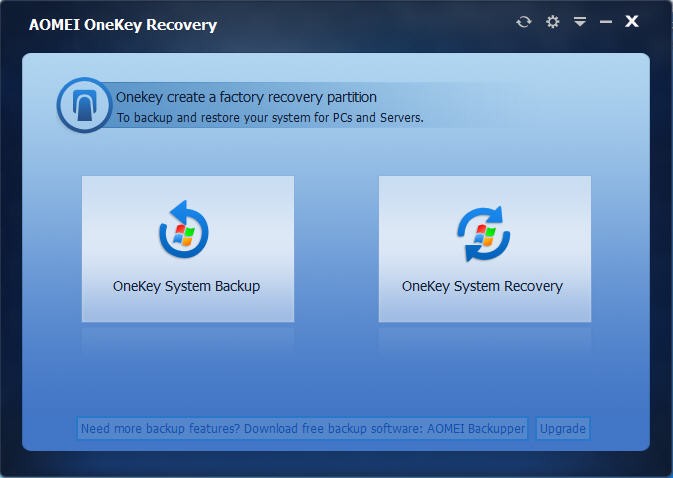
AOMEI OneKey Recovery Custom Windows Recovery - techniblogic


AOMEI adds that backup function to any PC. It has many new features which make it different from other softwares which are available in the market. It creates an image of your hard drive on another partition like on external hard drive or any other place where you can backup it. When your system gets corrupted or unstable, you can return it to the last image from the Windows boot menu. Unlike Windows System Restore, this will overwrite any existing stuff you have on the drive. For nasty viruses that you can’t get rid of, this is another best tool for you.

AOMEI OneKey Recovery - techniblogic

It works well on 32-bit or 64-bit version of Windows 10, Windows 8.1/8, Windows 7, Vista, and XP.  AOMEI OneKey Recovery supports both MBR and GPT disks. It also supports for restoring to original disk or other disks. In addition, the interface of AOMEI OneKey Recovery is very simple, just reflecting that it is easy to use. Besides, this one key recovery software is FREE to use.If you want to find a server backup software, you can try AOMEI Backupper.


How to share files between Android , Ios & Windows ?

Hey guys finally the wait is over, when we think how we can share our Files, folders, images, music, videos on different OS (Operating systems), as in past it is not possible to share files from android to IOS without making a Jailbreak on IOS or by using ITunes on windows, but now you can share the any files or folder or anything between any of these three platform very easily and in some seconds without having any of the trouble.

Bittorrent, yes you have heard it right bittorrent which is torrent client used to downloads different torrent files have made an app compatible with all these three platform (Android , IOS & Windows), which will make you share any of the Files , image , video anything from one device to another just by scanning the QR code from other device using the app and it will transfer the content from one to another like we do it on android using different apps like Superbeam , Shareit etc.

If you want to send any of the files to your friends, you can choose the file you wish to send and your phone will display a QR code. The person to whom you are sending the file to, the receiver, will have to scan the QR code, and the data will be transferred using the BitTorrent Sync Technology. Since Shoot is powered by the BitTorrent protocol, files move instantly between devices without going through the cloud, and hence they are less likely to be hijacked. Also, they are transferred faster, regardless of the network of the connected device.

You may say that we have Bluetooth and other messaging apps that do not require the hassle. Well, Shoot’s two main winning points are:

  • It is easy to send large batches of media files to several devices at one time. There is no limit on the quantity of files that can be moved using the Shoot app.
  • Privacy, since nothing goes up on the Cloud service. That is, the files are only being accessed by you and the recipient – the company’s servers aren’t acting like a middleman in the process. Data is shared directly instead of requiring files to be uploaded to a central server and then downloaded by the recipient.
  • BitTorrent Shoot doesn’t require the two devices to be on the same Wi-Fi network, which is a plus.

Erik Pounds, BitTorrent Sync’s VP of product management, explained:

If you’ve ever experienced a situation where you’re on iOS and a friend next to you has an Android phone, sending something like a big batch of photos or a long video is a challenge. We based the use case around spontaneity: You could be at a concert with friends, recording a video; on vacation with your family, taking tens/hundreds of pictures; maybe at a birthday dinner, capturing a group serenade.

You can download the app now directly from

Google Play

Apple’s App Store

Windows Phone Store

Just for trial, you can send three files for free using Shoot. After this, you will be asked to pay a one-time fee of $1.99. Receiving is free. Though, this is how the app generates revenue (yes, Shoot does not show any ads.)

It will be interesting to see how QR codes work out in the future for exchanging data through different devices.

You can check out how the app works below:

Apple’s Siri Useful & Funniest Commands

Guys you all must be knowing about Siri, if not, then Siri is a voice based application or program which is  designed by Apple. It is one of the most famous as well as best  applications designed by Apple which let you instruct your i-Phone via different voice commands. Microsoft has launched its voice assistant Cortana Google has its ok Google, but Siri is still the best in business.

Siri has numerous valuable functions like composing content, making voice calls or even scheduling appointments by voice. Siri is very convenient application for the individuals who are utilizing Apple items for long time. Aside from its valuable perspectives it has some exceptionally entertaining charges which client can play with.If someone asks “Where do you come from” it reply like a honest child “I, Siri, was designed by Apple in California”.

Here are a list of some cool useful commands of Apple’s awesome product. But before that must watch this video:

Apple Siri useful commands-

1. Call home.

2. Get my Call History

3. Do I have any Missed Calls?

4. Re Dial that Last Number.

5. Check my recent call.

4. Read my new messages.

5. Read it again.

6. Reply “How you doing?”.

7. Send a message to 09*******.

8. Send a message to Jack.

9. Check email.

10. Read my last email.

11. New mail to Jack.

12. Mail Jack about the trip.

13. Wake me up at 9 AM.

14. What time is it?

15. What date is it?

16. Schedule meeting with Jack at 6 PM.

17. Whats on my calender today.

18. Remind me to stop by bank.

19. Turn on Airplane mode.

20. Turn on Wi-fi

21. Turn on Do-not disturb.

22. Write on my wall “Having fun with Apple Siri”

23. Tweet “I love Apple Siri”

24. What is 4*4?

25. What is the square root of 144?

26. How far is the moon?

27. What’s the population of India?

28. Show accessibility settings

29. Play my party mix

30. Don’t hate me because you ain’t me!

Apple Siri funny commands-

1. Where do you come from?

2. You are a dumb ass!

3. Stop crying you emo!

4. I eat iPhones like you for breakfast!

5.Will you marry me?

6. Want to split the bill?

7. You are late on rent!

8. You look like Clark Kent!

9. Can I puke on you?

10. Android is my co-pilot!

11. You are going to be my new paperweight!

12. Will you scratch my back?

13. Want to smoke some crack?

14. Want to cook some meth?

15. You have bad breath!

16. You’re pretty dumb for a smart phone!

17. I bet the iPad could kick your ass!

18. I heard you’re dating a Kindle!

19. I’m going to throw you out of the window!

20. I’m going to run you over with a car!

21. Call me sweetheart

22. Where are you?

23. I love you

24. Who is your daddy?

25. Do you want to make out?

26. Can you be my designated driver?

27. What exactly do you look like?

28. I want to touch your butt

29. You smell like a cow dung

30. Are you wearing a wig?

31. Where do you live?

32. Where is this place?

33. Do you think Santa claus really exists?

34. Find a coffee shop along the route

35. Find a supermarket near home

36. Am I there yet?

37. What are you wearing?

38. What will you be doing later?

39. Is it going to rain?

40. Are you going to pay for dinner?

41. Stop acting are a fool

42. Stop being foolish and start using your head

43. Are you okay?

44. Tell me something good

45. Is there anything new?

46. Why not me?

47. Are you female?

48. Where is the problem?

49. Stop it!

50. Can I talk to you?

Note: Jack is just a name I used here. If you are an Apple i-Phone user, I hope these funny  commands will fill you with laughter.

So guys, which command do you like the most lke us know by commenting below.

How to Wirelessly transfer files to your phone ?

You guys must want to know how we can transfer our files from PC or laptop to our phone or any android devices without connecting any USB cable.

  1. One option that comes to the mind is that we can transfer files using the Bluetooth device, but what if there is no Bluetooth Dongle installed in the PC.
  2. Second option that comes is using the WiFi router to share the files on high speed wirelessly, but the main question arises is how?

So, for this here comes the application which make it possible to transfer the files from the system to your phone wirelessly.

Pushbullet is a new Portal app that allows transferring files from a computer to the target Android device directly over Wi-Fi. So if you have some large files on your PC or Mac, you can use Portal app to transfer them to the Android phone or tablet without having to connect it physically with the computer.

Portal app from Pushbullet functions very similarly to popular AirDroid, which offers more features than simple files transfer. To get started, you have to use the Portal app to scan the QR code at the Portal web page as it appears on a PC or Mac.

Also Read: Fix dns_probe_finished_no_internet in Chrome using these steps (solved)

Once connected, you can simply drag and top the files on the Portal web page and the Portal app also shows the files that have been transferred on the phone so that the you don’t have to go around hunting for it.

Pushbullet app already had files transfer feature but one had to really haggle to fetch them. Now Portal also makes it possible to send files.

Portal app is available for free at the Google Play Store.

How to Make Free International Calls ?

hey guys you all must be thinking how a person can do a international call free without paying any single amount of penny to any of the mobile operator. But it is possible. The main reason why we don’t call our friends and relative living in foreign country is due to the call rates that are very expensive and it is not possible for everyone to make it.

There are some of the well-known internet companies provide applications that can be used to make free calls. They can be used in different ways.

  • PC to phone programs can make a free call from your computer to a real telephone number, so you don’t even need a telephone yourself.
  • App to phone software make free Internet calls from a mobile device to a real number. These services support making phone calls to any number, even landlines and mobile phones that aren’t using the app.
  • PC to PC Internet calling is when a computer makes a free phone call to another computer.
  • App to app services run entirely on mobile devices and results in phone calls that can only work if the recipient has the same application installed. This method can not be used to call landlines or other mobile phones that don’t have the proper software.

To make a free call using an Internet phone, you might have to download free phone call software or application. But you can not use to dial emergency numbers such as 911, 100, 102 etc.

1. Google Voice

Google Voice is the easiest and simplest way to make free Internet phone calls. With Google Voice, you can make free calls to an actual phone number, PC to PC calls, and free PC to phone calls.

Google Voice is much more than a way to make free phone calls on the Internet. Google Voice is primarily a way to manage the phone numbers in your life and can be used to intelligently route incoming calls to your free phone number provided by Google Voice to any other phone you have. With Google Voice, you can also get free SMS, make a free conference call, and get free voice mail services.

Free calls you make with Google Voice must be to numbers in the United States or Canada. Google Voice is available as a mobile app that works with Android, BlackBerry, and iOS users, as well as a web app that works with other mobile devices.

Visit: Google Voice

2. BlackBerry Messenger (BBM)

BlackBerry Messenger (BBM) is a mobile application used primarily for sending and receiving text messages. It can also be used to make free Internet phone calls to other BBM users. BBM is available for Android, iPhone, iPod touch, iPad, and Windows Phone devices. BlackBerry users have BBM installed by default.

After installing the application, users are given a unique PIN that’s used as a username. Contacts add each other to their BBM address list using this PIN. Internet phone calls made with BBM are not restricted in length or by any other means, however they can not be made to landlines or non-BBM users

Visit: BBM

3. MagicJack

magicJack is an app to app and app to phone mobile application that offers a real phone number that can be used to make free Internet phone calls. Not only you can call other magicJack users for free anywhere in the world, but you can also call any regular telephone number in the US and Canada, even if they don’t use the magicJack app (like landlines).

The contacts that are already in your phone will display in the magicJack app, which makes calling existing contacts really easy. magicJack users also get free voicemail.

iPhone, iPad, and iPod touch users can use this app in addition to Android devices. There are no desktop programs available.

Note: Download links for magicJack are difficult to find on their website, but you can grab direct links for Android and iOS devices here

4. Facebook Messenger

Facebook Messenger is the messaging service from Facebook. It can transmit text messages and make free Internet phone calls from PC to PC and from app to app. To make free Internet calls using Facebook Messenger, both recipients need to be “friends” on Facebook and have the correct application installed.

To use a computer to make calls over Facebook Messenger, a plugin needs to be installed. For Android, iOS, and Windows Phone users, the Facebook Messenger mobile application must be installed. Facebook Messenger can also transmit text and video in addition to voice. Facebook Messenger does not support calling real phone numbers like landlines.

Visit: Facebook Messanger

5. Viber

PC to PC and app to app free Internet phone calls are available with Viber.

Viber works with many different devices. The mobile application can be installed for iOS, Android, Windows Phone, BlackBerry, Bada, and Nokia users. Software can also be installed to a desktop computer to make free Internet calls with other computers and mobile devices. This works with Windows, Mac, and Linux operating systems.

The app scours your contact list on your mobile device to find other Viber users, which makes it simple to know who you can call for free. Messages and video can also be sent through Viber to any other device that has it installed, be it a mobile or desktop version.

Visit: viber

6. Tango

Tango is a free service that can make free Internet phone calls via app to app.

If you’re running a Windows computer or have an iPhone, iPad, Android, Blackberry, or Windows Phone, you can install Tango to call other users for free. New Tango contacts can be added by searching through your existing address book. Anyone who has Tango installed will show up as a friend. You can also find Tango users that are currently positioned around you by their location.

Tango can make video calls and send free text messages to other users as well.

Visit: Tango

7. Skype

Skype is a popular messaging service that can make free Internet phone calls between several different desktop and mobile platforms.

Skype can be installed on: Android, BlackBerry, iPhone, iPad, iPod touch, Kindle Fire HD, PlayStation Vita, and Windows Phone. Desktop versions are also available for Linux, Mac, and Windows. Because Skype works on both desktops and mobile devices, any variation of communication is allowed – PC to PC, app to PC, app to app, and PC to app. To create contacts with Skype requires recipients to already have a Skype account. You can find a user in the public Skype directory by their email address or phone number. You can also add contacts directly if you know their username.

Skype supports not only Internet calling but also video calls and text messages to any other Skype users.

Visit: Skype

8. Yahoo! Messenger

If you’re a Yahoo! user, you can use the mobile or desktop application to make free Internet phone calls with other users. Windows and Mac desktop users can install Yahoo! Messenger as well as iOS and Android devices. Video calls, instant messages, and SMS texts can also be sent using Yahoo! Messenger.


So guys if this post is helpful for you please do let us know by commenting below.

What Windows 10 Upgrade will make you miss from Windows 8 & Windows 7

Hey guys a special post for all the Windows platform lovers. As you all guys must know that there is release of WINDOWS 10 on July 26th 2015 and this date and day is coming closer. Everyone is exited as each and everyone having windows 8 or windows 8.1 will get the free update of windows 10 for 1 year even if the windows they are using is not genuine.

There are many new and additional features which will be coming in their new update of windows 10, but there are some of the old features from windows 7 and windows 8 which are being removed by the Microsoft designers and engineers, like:

  • There is a confirming news that you won’t be able to choose the timings and parts of the updates you want to install in Windows 10. Microsoft wants to be in-charge of this department and you may not like it.
  • If you are going to upgrade your PC to Windows 10, you won’t be able to use Windows Media Center anymore. Currently Windows Media Center is available in Windows 7 Home Premium, Windows 7 Professional, Windows 7 Ultimate, and Windows 8 Pro and Windows 8.1 Pro with Media Center.
  • Windows 10 won’t be having Solitaire, Minesweeper and Hearts Game that are pre-installed on Windows 7.
  • If you use floppy drive, it won’t be supported out of the box by Windows 10. You will have to download the latest drivers using the manufacturer’s website or Windows update.
  • To run DVDs, you will need a third-party software in Windows 10.
  • If your current PC has Windows Live Essentials installed, the OneDrive version will be removes and replaced with inbox version of OneDrive.
  • Windows 7 desktop gadgets won’t be a part of Windows 10.

Some of these changes might defiantly going to affect you, upgrading to Windows 10 isn’t a bad choice given the fact that it is available free of cost if upgraded within one year.

To the features that won’t be continued in Windows 10, there are many free and efficient alternatives available in the market from the third party source.

So guys what do you think about it, should they add the old features or permanently withdraw those services.

Comment below for your views regarding it.


How to Protect Eyes from Computer Strain

Guys, you all must be thinking how we can do it without using any kind of additional specs like the gunner one which are available in the market and save our eyes from the strain we have from the computer screen. So, finally there is no more watery eyes, while working in front of a screen, you can work as much as time you want to because your eye savior, f.lux is here which is a software which is available for all the operating system platforms and you can download it from the following link below.

Download – F.lux

So, we begin with the first thing that

Why do we need F.lux on our system?

Always decreasing the brightness of the display of your PC is not a good and comfortable option, because the blue light which comes from the display is still harmful enough to strain up your eyes with water and completely ruin up your sleepy state. It is proven that exposure to blue light significantly aids in keeping you awake for a longer time in the night.

Now, we come to

What is F.lux? and why do we need it?

f.lux is a desktop software for Windows, Linux, Mac, iPhone, iPad and iPod touch which limits the glow of the screen by replacing it with a warm tone. After that there will be no problem for your eyes, as you will feel comfortable on the screen in the morning too.

f.lux makes the color of your computer’s display adapt to the time of day, warm at night and like sunlight during the day. It changes accordingly. f.lux makes your computer screen look like the room you’re in, all the time. When the sun sets, it makes your computer look like your indoor lights. In the morning, it makes things look like sunlight again.

Tell f.lux what kind of lighting you have, and where you live. Then forget about it. f.lux will do the rest, automatically.

How to Use F.lux?

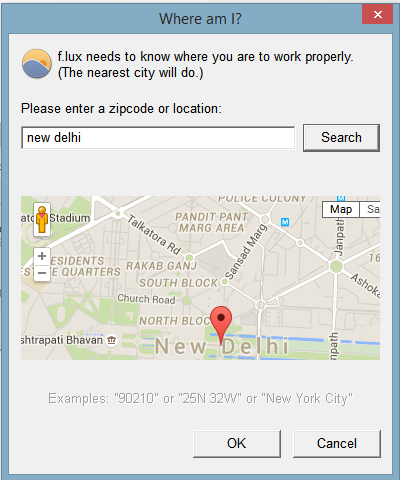
It does the work by calculating your present location (through google maps)and works according to the sunrise/sunset cycle. The f.lux indicator applet automatically manages the color temperature of your screen based on your latitude and longitude, or just put the name of your place and it will find you automatically.

f.lux finding your location - techniblogic
f.lux finding your location – techniblogic

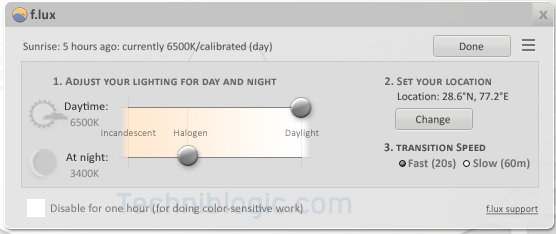
In the setting panel, you can set your preferred night-time color temperature and see a preview, as well as seeing the current color temperature.

f.lux setting for manualchanges - techniblogic
f.lux setting for manual changes – techniblogic

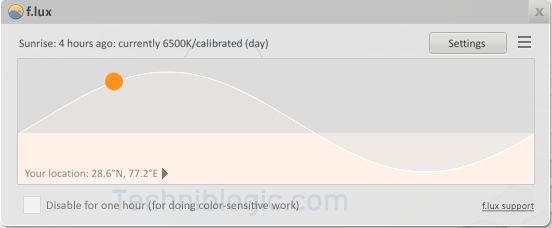
f.lux auto calibrating the time - techniblogic
f.lux auto calibrating the time – techniblogic

You can download f.lux for windows here and for Mac here.
For iPhone, iPad and iPod Touch you need to jailbreak your device in order to install it. You can follow the instructions here.

So, guys do test this software and share your views in the comment below.

Yu launches HealthYu and YuFit by attacking Xiaomi indirectly

hey friends after a long wait Micromax has finally launched its new Android Device which is the successor of its Predecessor Micromax yureka with the name of Micromax Yuphoria. The Phone has really amazing specs with really awesome and new design (Micromax Yuphoria Specs). When we come to the price of the phone you will just get shock after seeing the specs and design as the price of the device is only Rs. 6,999 and you can registration it on Amazon.in . The phone is going to create a new bang in the Indian Market surely.

Micromax Yuphoria Specs

When we come to another thing, some days back Huawei has direcly attacked on xiaomi by comparing there Xiaomi mi4i (the xiaomi flagship) with Huawei honor 4x (Huawei Honor 4X Direct attack on Xiaomi Mi4i)  after that on 12 May 2015 micromax has indirectly attack Xiaomi by launching two new devices in the Indian market which is HealthYu and YuFit.

YuFit

Yu Fit Band micromax - techniblogic
Yu Fit Band micromax – techniblogic

Here YuFit is a health care band like Fitbit and micromax attacked xiaomi mi band by the

  • Price as both the bands are of same prices which is Rs. 999.
  • YuFit has a OLED display, which Mi band lags
  • YuFit also works like your watch, which Mi Band don’t support because of no display.
  • Firsly, in market MI band was the cheapest and value for money Fitness band available but now from next month much better option with Micromax YuFit will be available.
  • YuFit has better Software with new UI according to the launch event of micromax as it also support counting the calories of the food eaten by you.
  • Both YuFit and Mi Band are Waterproof.

Another attack was in the marketing approx like xiaomi they make there first 1000 buyer of MI band at Re. 1 each, Here also micromax is going to provide first thousand buyer the Band for free (not even charging single penny) with providing them personal trainer for some days for there daily workout (which is a new concept). The subscription for trainer will be Rs. 300 for 3 months.

The YUFit Band comes with an OLED Display and has the following functionalities :
Track Steps
Tracks Sleep
Tracks Calorie burnt
Tracks distance Walked
Finds your phone
informs call/message

In addition to this, Yu Fit Band can be synced with the Yu Health app. The app will not just show the number of steps you took and the calories burnt but can also be used to track food eaten and the number of calories consumed based on diet.

The food tracking allows users to input what they had for breakfast or lunch or dinner (Indian food items like samosas and dosas are also included) and based on what the user feeds into the app, the app will tell them the number of calories consumed and if they should go easy on the next meal. This is useful for those who are setting goals for their daily diet.

In addition to this Fitness tracking will allow the app to track if a user has reached their fitness goals. Fitness Tracking allows users to chat with personal health coaches, nutritionists, etc and is powered by the HealthifyMe app in which Micromax had recently invested. Micromax has not specify the cost for signing up for these Coach programmes.

 HealthYu

healthyu micromax - techniblogic
healthyu micromax – techniblogic

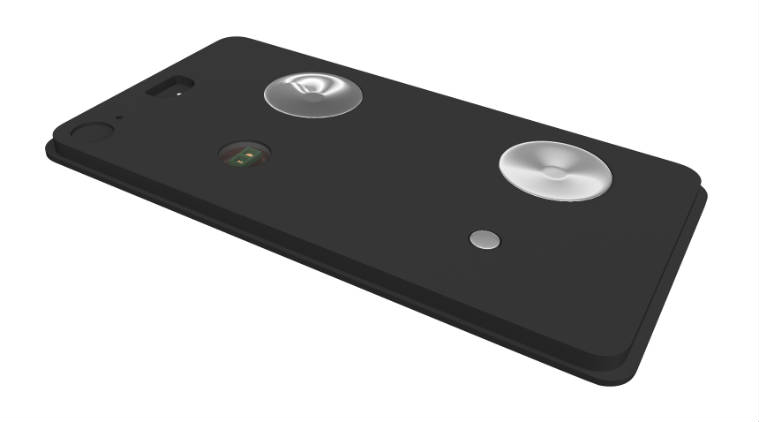
Another device which is being launched by Micromax was HealthYU Cassette is a device which will allow users to keep a track of essential body vitals like Respiration and Heart Rate, Blood Pressure, Blood Oxygen saturation, Body vitals, ECG, Body Temperature.

The Cassette can be attached to any Android smartphone and connects via Bluetooth. Users need to download the HealthYu app (from Google Play Store) and then the readings of the device will be reflected in the app.

The HealthYu app will record all the data and you can even send weekly reports from the app to your consultant doctor. The HealthYu app stores all the data on the cloud and gives around 90 readings per charge.

The two devices will be available from June 2015 via company website which is yuplaygod, it is also like xiaomi has done for there MI band.

So friends what are your views regarding the marketing techniques as well the devices which are being launched by Micromax do let me know by commenting below.
How to Find Duplicate Files in Windows

Guys there is always the problem to many of us like me too for the duplicate files which is being created on our system by the time goes on, that duplicate files take the lot of space on our hard drive which is a problem as it may also slow down the processing speed of different software’s an processes we do on our system. It is being very difficult to Find Duplicate Files in Windows manually, as we need to check each and every file and folder manually which is not being possible on regular basis.

There are lot of software’s available in the market and on internet that claim that they can clean or find all the duplicate files which are there in the system hard drive automatically.

Today i found Duplicate Files Finder light which is  fast to use. Duplicate Files Finder is a software that locates the duplicate files (same content, it is not necessarily to be of same name). You can delete them manually. The search used in this software is very fast compared other programs of  similar nature with hashing algorithms.

Firstly, all the files are sorted by size as duplicate files will have equal size. Other search software use hashing algorithms that scan the files completely. Also, additional caching of files improves the performance.

Take a look at some of its features:

  • Comparison is Byte by byte
  • Search is very fast
  • Support for symbolic links and hardlinks
  • Good interface for deleting files and creating links
  • Variety search options

How To Find Duplicate Files in your system?

Step 1.

First you need to download and install the Duplicate File Finder setup in your system. Download for Windows and Linux from HERE

Step 2.

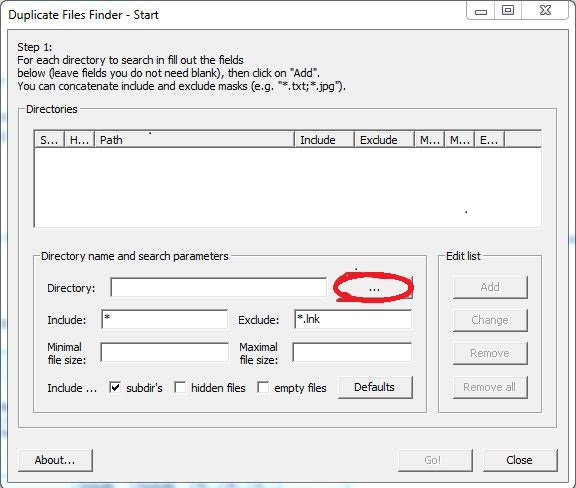
Open the Duplicate Files Finder and you will find this app window as shown in image below. Now click the button highlighted in the picture to choose the directory in which you are expecting the duplicate files. Once you selected the directory, click OK.

duplicate-file-finder - techniblogic

Step 3:

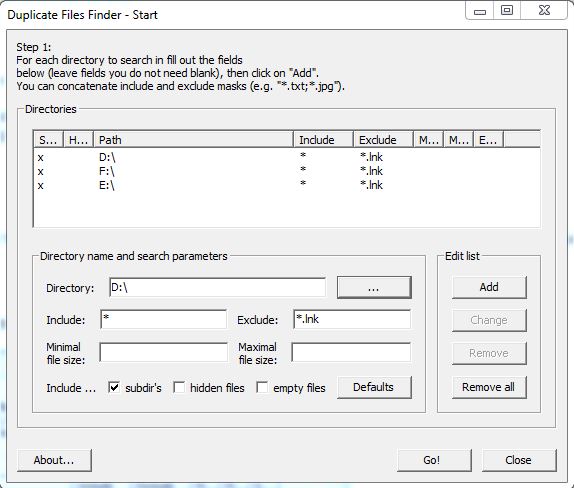
Now click on Add which is located at right hand side of directory option. Duplicate Files Finder gives you option to add multiple directories or folders at once in which you wishing to find the duplicate files.

selecting-multiple-directories-in-duplicate-file-finder - techniblogic

Step 4.

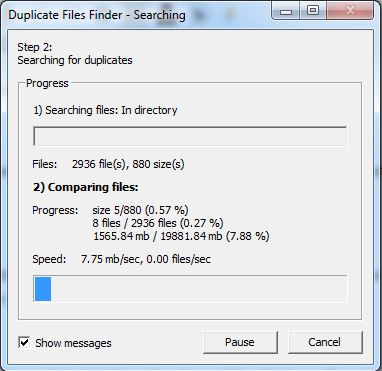
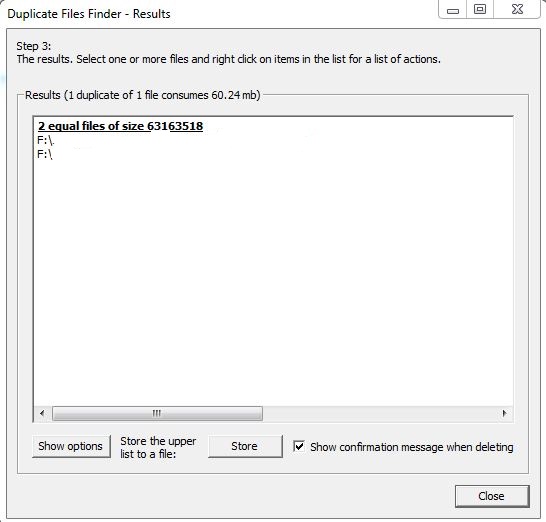
Once you selected all the directories or folders, click Go! Your Duplicate Files Finder will perform a quick search and return the names of duplicate files as well as in which folder they are being stored.

searching-for-duplicate-files - techniblogicduplicate-file-founded - techniblogic

Now You can delete the duplicate files from your windows without any issue and wasting any extra time finding the duplicate files manually.

If you find this post helpful? Tell us know in the comments!

How to Stop Google From Tracking you

Guys privacy is the main issue for everyone, at every place at every website. Even Google is tracking you at every point of time time. Every search you do on Google is being tracked by them. It will tell you your location the time the date at which you have searched that item on Google & what all websites you have accessed. In the past there was already the option that was being launched by Google through which you can download your Google search history and delete it from the server also. download and delete your search history.

And again they came up with the new thing where you can stop Google in being track you at every point of time and yes you have heard it right, you can stop Google from tracking your searches and browsing activity, websites which as visited by you , all the information from your devices, your different searches and commands, and even videos you search for on YouTube.

So, guys this post is to let you know how you can stop Google from snooping in your data, but Google claim that the data they collect is for enhancing the user experience on the web, so you need not to disable all the options. Here are the steps to disable Google tracker.

Step 1

The first step in order to do this is to login to Google Web and App Activity Page. Now click on Gear icon which will open some options.

Google Web History - techniblogic
google-web-app-activity-center - techniblogic

STEP 2

Now Click on Settings, it will open your accounts history settings. You can disable the searches and browsing activity from here or click on SHOW MORE SETTINGS to see other options.

google-web-app-activity-center-setting - techniblogic

Step 3

Now it’s final step to stop Google from tracking you, all you need to do is to disable the option by clicking on the slide buttons located at the right side of every option. Now you can disable the options you want.

stop-google-tracking-me - techniblogic

Now as you disabled Google from tracking you, you need not to worry about all the things you search on Google as it will not be able to track you further more. But yes, if they want they can still look into your search for sometimes in order to improve the quality of your search results, or as they say. To go complete anonymous, incognito mode is a better way.

google-warning - techniblogic

guys if you like this post do give your suggestion in the comment section below and do share with your friends for awareness purpose.

Top 10 Social Media Management Tools in 2015

3

Social media management tools have grown in recent years from purely offering publishing features to including social media monitoring and analytics . In this Post, there are 10 different tools that will help improve your social media management and add efficiency to your work flow. 

Buffer

Buffer - A Smarter Way to Share on Social Media-techniblogicBuffer is a very popular social media scheduling application for fastest blogging sharing . This tool makes it easy to share content and automatically schedule the distribution to Twitter, Facebook, Linkedin, and Google Plus. Now, it works by staggering content throughout the day so you’ll set the pace and then Buffer will do the rest. What’s nice is it lets you continue to add content to your queue, you don’t have to worry about when to post it or about posting it too frequently. Simply fill Buffer with content it will also give you analytics about each post which lets you quickly see what ideas are working and what aren’t, and both free and paid plans are available.

VISIT NOW

IFTTT

IFTTT Put the internet to work for you-techniblogicIFTTT is an abbreviation for “If This, Then That” and this site helps you to create custom triggers to automated your social media sharing . With IFTTT, you’ll be creating what they refer to as “recipes”, essentially a set of instructions for what you want to happen. Now a recipe requires a source, which they refer to as a Channel, followed by a Trigger. The trigger is what has to happen before the tool moves on. Then, once the trigger occurs, you’ll tell IFTTT to take an action. You might create something that says, “If I post to Facebook, then post the same update to Twitter.

VISIT NOW

Hootsuite

Hootsuite Social Media Management Dashboard -techniblogicHootSuite is a comprehensive social media dashboard. And it’s an excellent tool for small to medium-sized businesses. It allows you to manage your content across multiple social media channels, listen to conversations, and measure results, all from one dashboard. HootSuite is really great if you’re managing one or more of social media networks and trying to consolidate the workload. It’s also set up to handle teams, which makes it easier to conduct customer service since you can see what conversations have been taking place. Now, HootSuite has a lot of features, some free, but most are paid.

VISIT NOW

SproutSocial

Sprout Social Social Media Management Software-techniblogicSprout Social is a social media management platform similar like Hootsuite, and it offers up the service to manage multiple social networks all-in-one place.  SproutSocial is a social media management tool created to help businesses find new customers & grow their social media presence

VISIT NOW

Pagemodo

Pagemodo Facebook Cover Photos, Photo Editor-techniblogicPagemodo is another unique social media tool with a bias towards Facebook, and in my mind, it has two key features, the ability to design visual Facebook posts and create an interactive Facebook page. It’s basic plan is $9.00 a month, which is a great value, but at the time of this recording, it was on sale for $4.50 a month, so it can likely be had for even cheaper. To show you the power of Pagemodo, let’s set up a free trial, and we can do that by choosing the large green button in the center of the screen. The first thing we need to do is add in our Facebook account, and be sure to use a Facebook account that is already connected to the Facebook page you want to be managing.

VISIT NOW

TweetDeck

tweetdeck-techniblogic

It is also a social media management tool for Twitter, As Twitter is constantly improving and updating their platform. With new features like Lists and Analytics . If you’re spending a lot of time managing your Twitter efforts,then TweetDeck is for you. This application is part of Twitter and it’s a natural expansion on the Twitter interface. With it, you can can create and build custom timelines, schedule Tweets, keep track of lists, searches, and even manage multiple accounts.

VISIT NOW

Raven

Raven Tools-techniblogic

If you have a moderately sized social media presence, then Raven tools is definitely worth a close look. It’s similar in function to Hootsuite and SproutSocial, but it’s tailored more for those who manage a lot of accounts. With Raven social, you can do all the basics of a social media dashboard: plan and distribute content, review mentions, and understand your data. But they go above and beyond with their brand monitoring software. They’ll look for mentions of your company around the web as well. In addition to their social media suite, the dashboard features SEO tools, content management software, reporting, and even pay per click management.

VISIT NOW

SocialBro

SocialBro – The 1 marketing platform for Twitter -techniblogic

SocialBro is a social media management tool , if you are conducting a lot of marketing on Twitter. This tool is for you , it will provides you with more depth than the standard Twitter interface. SocialBro has four main features: targeting, engagement, analytics, and management. With their targeting platform, you’ll be able to identify opportunities. You can then monitor Twitter for hash tags and conversations about your brand or even your competitors.Hope you will like it

VISIT NOW

Everypost

Everypost-techniblogic

Everypost brings the ability to post content to all of your social media networks directly from your mobile phone. The mobile-only interface is intuitive, and it makes it easy to manage your social presence on the go. It’s not packed with a lot of features, and I think that’s actually a nice thing. One of the nice features is the ability to customize your social media posts per network, so you can draft one message but tweak it slightly to fit the 140 character requirements of Twitter. 

VISIT NOW

BuzzSumo

BuzzSumo Find the Most Shared Content and Key Influencers-techniblogic

Social media is really a good platform for sharing your content. Well thought out, engaging, and relevant content provides exposure to your brand and helps to increase your popularity in the social world . BuzzSumo is a content marketing tool that allows you to explore and discover content to see what works and who’s influential in delivering the message. The first is content insights, which allow you to discover what content is popular on all social networks, and you can even run some comprehensive reports.

VISIT NOW

What is your favorite social media management tool?